Guide
How to Reverse Audio Online
Reversing audio flips the file so the end plays first and the beginning plays last. It is a simple operation, but it can create dramatic transitions, unusual textures, and useful checks for sound design.
What happens when audio is reversed
A reversed file contains the same samples in the opposite time order. Pitch and level are not intentionally changed. What changes is the direction of every sound: drum hits swell backward, reverb tails can become risers, and speech becomes unintelligible because phonetic timing is reversed.
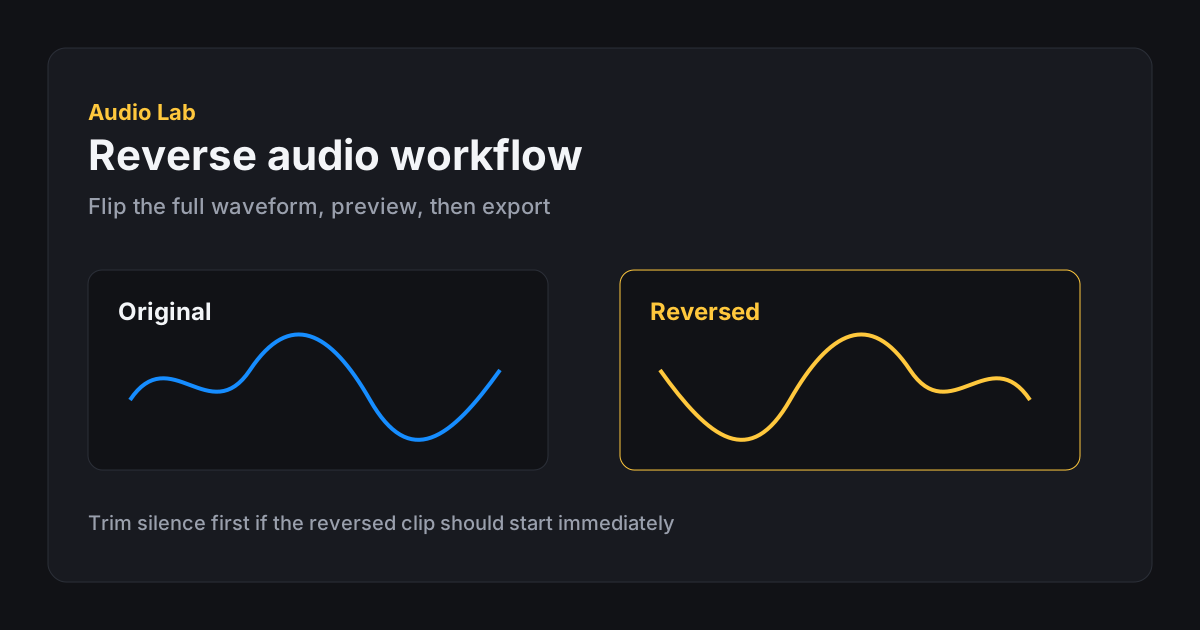
The Reverse Audio tool shows a reversed waveform preview so you can listen before exporting. This is important because a clip that looks balanced forward may start abruptly or end strangely once reversed.
Common creative uses
Reverse audio is often used for transitions. A cymbal tail, piano chord, or vocal reverb can become a swell into the next moment. Short sound effects can become less recognizable and more atmospheric. A reversed sample can also help producers find hidden timing details or create a new layer from familiar source material.
For voice, reversing is usually an effect rather than a practical edit. It can be useful for puzzles, experimental videos, or removing intelligible words from a texture, but it will not preserve normal speech meaning.
Prepare the source before reversing
A clean source creates a cleaner reversed result. Long silence at the end of the original becomes silence at the beginning of the reversed file, which can make the export feel broken even when it is technically correct. Trim unneeded silence first if the reversed clip should start immediately.
Also check fade direction. If the original ends with a gentle fade-out, the reversed version begins with a fade-in. That can be useful for a riser, but it may be wrong for a short sound effect that needs a strong first moment.
Step-by-step reverse workflow
Open Reverse Audio, load a file, and preview the result. If the reversed clip is too long or contains silence, consider using Trim Audio first to isolate the useful section. Reversing a clean, intentional clip is easier than reversing an entire recording and searching afterward.
Listen to the beginning and end of the reversed file. Because the original ending becomes the new start, a natural fade-out may turn into a slow fade-in, while a hard stop may become a hard opening. Add volume or trim adjustments in separate passes if the reversed file needs cleanup.
Export WAV or AIFF when you want to continue editing. If your browser offers a compressed export format and the file is for quick sharing, that may be enough.
Pair reverse with fades and trim
Many reversed transitions work better after a short intentional fade. Read Fade in and fade out explained if you need help choosing fade length. If the reverse is only for one musical hit, isolate that hit first so you are not reversing minutes of unused audio.
Keep descriptive filenames. Reversed clips can be hard to identify later by ear alone, especially when they are used as risers or textures inside a larger project.
- Trim silence before reversing when timing matters.
- Preview the new opening carefully.
- Use fades when the reversed edge is too abrupt.
- Export WAV for production layering.
Limitations to know
Audio Lab reverses the complete loaded file in the reverse tool. If you want only one section reversed, trim that section first and then load the trimmed export into the reverse tool. The editor is intentionally focused on one main operation at a time so the workflow stays clear.
Reversing does not remove noise, repair clipping, or align a clip to a tempo grid. It simply flips time direction. That simplicity is also why it is fast and predictable for everyday effects.
After export, give the new file a descriptive name. Reversed clips can be hard to identify later because the content may no longer be recognizable from listening alone.
FAQ
Frequently asked questions
Can I reverse only part of a file?
The reverse tool applies to the full loaded file. Trim the section first, export it, then reverse that shorter clip.
Does reverse reduce quality?
Reversing the sample order itself is not lossy. Export format choice can affect quality, especially if you choose a lossy compressed format.
Why does reversed audio fade in instead of out?
The original fade-out becomes a fade-in when time direction is flipped.